In this article
You already built the lead magnet. That was the hard part.
Now you need people to actually see it. Most creators publish their lead magnet on one page, add a sidebar widget, and wait. Signups stay low, and they assume the problem is the lead magnet itself.
It almost never is.
Where you put your opt-in changes everything. This guide covers the seven placements that consistently bring in subscribers, and exactly how to set up each one.
What You Will Need
- A finished lead magnet (a one-page checklist or PDF guide works fine at this stage)
- An account with an email service provider (ConvertKit, MailerLite, and Brevo all have free plans)
- An embed code or opt-in form link from your email service provider
- A website or blog where you can add an HTML block or form widget
Step 1: Add Your Lead Magnet to Your Homepage Hero
The homepage hero is the highest-traffic location on most creator websites. Adding your lead magnet opt-in above the fold, visible without scrolling, produces 2 to 5 times more signups than a sidebar form showing the same offer, according to published conversion research from OptinMonster. Every visitor who reaches your homepage sees it.
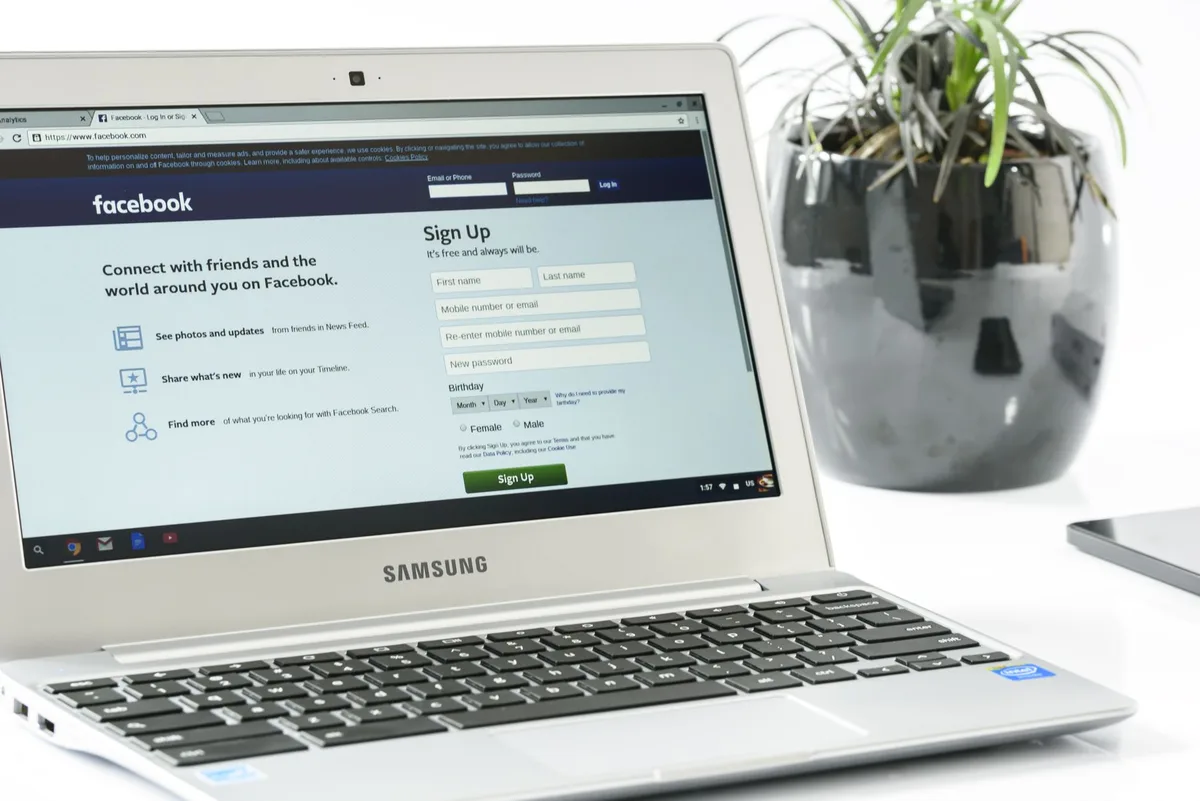
Most creator homepages feature a generic welcome paragraph and a navigation bar. That is a missed opportunity.
Your homepage gets more traffic than any other page on your site. Putting your lead magnet opt-in in the hero section means every new visitor encounters it immediately, before they scroll, before they decide whether to explore further.
What goes in the hero section:
- A headline that names the outcome your lead magnet delivers
- One sentence describing who it is for
- A simple email input field and a button
- Optional: a mockup image of the lead magnet itself
Keep the form short. Email address alone converts at a higher rate than two-field forms, per published data from ConvertKit. Adding a first-name field reduces completions by around 10 to 30% for most audiences.
The most common mistake: using the hero to describe yourself instead of what the visitor gets. “Welcome to my coaching blog” helps nobody. “Get the 1-page framework career coaches use to book their next 5 discovery calls” gives visitors a reason to hand over their email.
Step 2: Create a Dedicated Lead Magnet Landing Page
A dedicated landing page, a standalone page with no navigation, no sidebar, and no competing calls-to-action, converts opt-in traffic at 20 to 40% for warm audiences, according to published benchmarks from Unbounce. Site pages with navigation visible convert at 5 to 10% for the same traffic. The difference is focus: every element on the page exists to support one decision.

Every lead magnet needs its own dedicated page.
Not a blog post. Not your about page. A standalone page built for one purpose: exchanging your lead magnet for an email address.
This is the page you link to from your social media bio, from your Instagram posts, from any promotion you run. When someone asks where to get your checklist, this is the URL you send them.
The anatomy of a page that converts:
- A specific outcome-focused headline
- A mockup or preview image of the lead magnet
- Three to five bullet points naming what the visitor gets
- A short opt-in form (email address and a submit button)
- One piece of social proof (subscriber count or a quote from someone who used it)
Remove everything that competes with the form. No navigation. No sidebar. No footer links. Every element on the page should either reinforce why the offer is worth the email address or make the opt-in itself easier.
For a detailed breakdown of what goes on each landing page section and why, see the lead magnet landing page guide.
Step 3: Add Content Upgrades Inside Blog Posts
A content upgrade is a post-specific opt-in that matches the exact topic of the article a reader is currently reading. Content upgrades convert at 5 to 10 times the rate of generic sidebar opt-ins showing the same audience a general lead magnet, according to published case study data from Backlinko. The reason is relevance: someone already reading your checklist post wants a checklist.

A generic sidebar lead magnet underperforms because it interrupts the reading experience with something the visitor may not care about right now.
A content upgrade solves this. It is a bonus resource that matches exactly the post the reader is already reading.
Examples by content type:
- A post about meal planning: “Download the weekly meal planning template from this post”
- A post about Instagram captions: “Get the 15-caption swipe file mentioned in this guide”
- A post about lead magnet formats: “Download the format comparison worksheet from this article”
The visitor is already engaged with the topic. The content upgrade converts that engagement into a signup because the offer directly extends what they just read.
Where to place content upgrades inside the post:
- After the introduction, once they are invested in the article
- Mid-post, at the natural point of highest interest
- At the end of the post, as a take-it-with-you summary resource
If you have ten blog posts and ten generic opt-ins, you have ten opportunities to underperform. If you have ten posts and ten matched content upgrades, you have ten separate list-building assets.
For a practical guide on what to create as a content upgrade for each post type you publish, see the content upgrade ideas guide.
Step 4: Install a Sticky Header Bar
A sticky header bar is a thin banner fixed at the top of every page that stays visible as visitors scroll. It provides constant exposure without blocking content. Published data from Sumo suggests header bars contribute 200 to 500 incremental subscribers per month for blogs with 10,000 or more monthly visitors, making it one of the highest-ROI placements for sites that already have traffic.
A sticky bar shows your lead magnet offer on every page, at every scroll position, without interrupting the reading experience.
It is not a popup. It sits at the top of the browser window and remains visible as the user reads. Visitors can ignore it or click it. Either way, it is always present.
Tools that handle this without needing a developer:
- ConvertKit’s native form widgets include a floating bar option
- HelloBar (free plan available, installs via a script tag)
- OptinMonster has a floating bar placement type
Write short copy for the bar. One sentence maximum. “Get the free [result] checklist” is enough. Link the bar directly to your dedicated landing page from Step 2.
The bar works best as a supplement to other placements, not as your only opt-in. It catches visitors who scrolled past your hero form without stopping.
Step 5: Use an Exit-Intent Popup
An exit-intent popup triggers when a visitor’s cursor moves toward closing the browser tab or navigating away. Per published conversion research from OptinMonster, exit-intent popups recover 10 to 15% of visitors who would otherwise leave without taking any action. It is a high-value placement that does not interrupt the reading experience, because it only fires when the visitor has already decided to leave.

Most creators avoid popups entirely because they associate them with the intrusive type that fires three seconds after someone lands on a page. Those are worth avoiding.
Exit-intent is different.
It only fires when the visitor moves to leave. By that point, they have already read your content. They have some familiarity with you. The popup is a last-chance offer, not an interruption.
What to write in the popup:
- A specific offer, not a generic one (“Get the checklist that goes with this post” outperforms “Subscribe to my newsletter”)
- One email field
- A submit button that names the outcome (“Send me the checklist” not “Submit”)
- A clearly visible close option so visitors do not feel trapped
One rule worth following: do not fire an exit-intent popup on mobile scroll. Mobile exit-intent is unreliable and tends to trigger during normal reading behavior rather than actual exit intent. Keep popups to desktop only if your tool allows it.
Step 6: Add an Opt-In to Your About Page
The About page is one of the highest-intent pages on a creator’s website. Visitors who navigate there are actively evaluating whether to follow, trust, or subscribe. Per published conversion data from ConvertKit, About pages with an opt-in form in the final third convert at 3 to 6% of visitors, significantly outperforming site-average sidebar rates for the same lead magnet.

People who visit your About page already like you enough to want to know more. They clicked through from somewhere, read your content, and decided to learn more about you specifically. That is a warm audience.
Most creators waste this by ending the About page with a list of social media links. A visitor who read your entire bio and clicked away without converting is a missed subscriber.
Add your lead magnet opt-in to the bottom third of your About page. The copy can be brief because the trust has already been established by the bio above it:
“Want the [specific resource]? Drop your email below and I will send it to you.”
This works because the visitor already went through your story. They do not need to be sold on the opt-in. They need a clear next step.
Step 7: Include an Opt-In in Your Website Footer
The footer is a lower-priority placement but a consistent one. Visitors who scroll to the bottom of a page are the highest-intent visitors on your site. A simple one-field opt-in in the footer captures this group without competing with higher-traffic placements. Footer forms typically convert at under 1% of site visitors, lower than hero and popup placements but requiring zero ongoing management once set up.
The footer is the easiest placement to set up and the most reliable over the long term. It does not require monitoring, testing, or adjustment. It just runs.
What to include in a footer opt-in:
- One headline line naming what visitors get (not just “Subscribe”)
- Email field
- Submit button
- No description paragraph needed at this location
Visitors who reach your footer have already read your content. They need a prompt to take action, not a sales argument.
Once your footer form is live, connect it to your email service provider and confirm the automated delivery is working. The ConvertKit lead magnet setup guide walks through how to configure automated delivery for every form placement type, including footer embeds.
Which Placement Should You Start With?
If you have no opt-ins live yet, start with Steps 2 and 3.
A dedicated landing page (Step 2) gives you a URL to share anywhere. A content upgrade inside your most-trafficked post (Step 3) captures visitors who are already there. Those two placements together will outperform five generic sidebar widgets.
Add the homepage hero (Step 1) once you have a polished headline and a confirmed-working form. Add the sticky bar and exit-intent popup (Steps 4 and 5) after you have traffic data showing which pages drive the most opt-ins. Build the easy placements first, get real signup data, then layer in the higher-effort ones.
For help understanding what opt-in rate is normal and when to be concerned, see the lead magnet conversion rate guide.
Frequently Asked Questions
Where to put a lead magnet on a website for maximum signups?
The highest-converting combination for most creator sites is a homepage hero opt-in plus a dedicated landing page plus content upgrades inside blog posts. The hero captures homepage traffic, the landing page handles direct links and social promotion, and content upgrades convert readers at 5 to 10 times the rate of generic sidebar forms, per published Backlinko case study data.
Should I use a popup for my lead magnet?
An exit-intent popup is worth adding once you have 1,000 or more monthly visitors and your other placements are already live. Per published OptinMonster research, exit-intent popups recover 10 to 15% of abandoning visitors. If popups feel off-brand, skip them entirely and build out the homepage hero, dedicated landing page, and content upgrade placements first. Those three alone can drive consistent list growth without any popup.
How many places should I put my lead magnet on my website?
Start with two placements: a dedicated landing page and one on-site placement (homepage hero or content upgrade inside your highest-traffic post). Most creators benefit from adding a third placement after the first two are confirmed working. Running more than five active placements on a small site tends to dilute focus without meaningfully increasing conversions.
How do I add a lead magnet opt-in to my site without a developer?
Every major email service provider (ConvertKit, MailerLite, Brevo) generates a copy-paste embed code for your opt-in form. Paste it into any HTML block, widget area, or page builder section on your site. No coding required. For a step-by-step walkthrough on setting up automated delivery after the form is live, see the ConvertKit lead magnet setup guide.
Start With the Lead Magnet Itself
Placement is only half the equation. If the lead magnet you are placing is not solving a specific problem your audience has right now, even the best placement will not save it.
If you are still building your first lead magnet, or if the one you have is not getting downloads even when people find it, the problem is usually the offer itself.
Start with the lead magnet creation guide to build something worth placing before you promote it everywhere.
Keep Reading
What to Do Next
Choose the path that fits where you are right now.
Your Lead Magnet Is Two Hours Away. Pick Your Format First.
One email. One page. Match your audience type to the lead magnet format most likely to convert — so you stop flip-flopping and start building.
Send Me the Decision MatrixRelated Articles
Lead Magnet Landing Page: Anatomy of a Page That Converts
A teardown of 30 high-converting lead magnet landing pages. Headlines, proof, form design, and value framing follow the same playbook. What to steal.
Lead Magnet Conversion Rate: What Is Good and How to Improve Yours
What's a good lead magnet conversion rate? Real benchmarks by placement type, plus a step-by-step process to diagnose and fix a low opt-in rate.
Content Upgrade Ideas: 12 Formats That Actually Convert
12 content upgrade ideas by post type and effort level. Each format includes a build-time estimate and a practical example to help you ship this weekend.