In this article
Searching “Canva ebook template” usually means one of two things. You want to repackage expertise you already have, or you are staring at a half-written ebook that stalled at page 14. Either way, Canva’s template library solves the design problem in minutes. The real work is picking a template built for a short lead magnet, not a full book, and scoping your content so you actually finish this weekend.
What You Will Need
- A Canva account (the free plan has enough ebook-style templates to start; Canva Pro adds more, see the comparison below)
- One narrow topic your audience already asks about, not a whole subject
- A target length of 8-12 pages. Anything longer is how most first ebooks stall at page 14 and never ship
- A delivery tool, like ConvertKit or Brevo, to send the finished PDF automatically after someone opts in
- About two to three hours, ideally in one sitting
That is the full list. No separate design software, no outline document, no second draft.
Step 1: Pick a Topic Narrow Enough to Finish
The ebook format fails most creators for one reason: the topic is too big. “A guide to career transitions” is a book. “The five questions to ask before you quit your job” is a lead magnet. Before you touch Canva, write your topic as a single sentence that starts with “how to” or “the exact steps to.” If that sentence needs an “and” in the middle, split it into two lead magnets and build the second one later.
If you are still deciding whether an ebook is the right format for this topic at all, the checklist vs. ebook comparison walks through when each format wins. And if you have tried the ebook format before and it stalled, the ebook lead magnet teardown covers exactly where that format tends to break and how to avoid repeating it here.
A quick test for your topic sentence: read it back and ask whether a stranger could guess what page 3 says just from the title. If they could not, the topic is still too broad. “Five questions to ask before you quit your job” tells the reader exactly what is coming. “A guide to career transitions” does not, and that vagueness is usually the first sign the draft will balloon past 12 pages.
Step 2: Search Canva’s Ebook Templates the Right Way
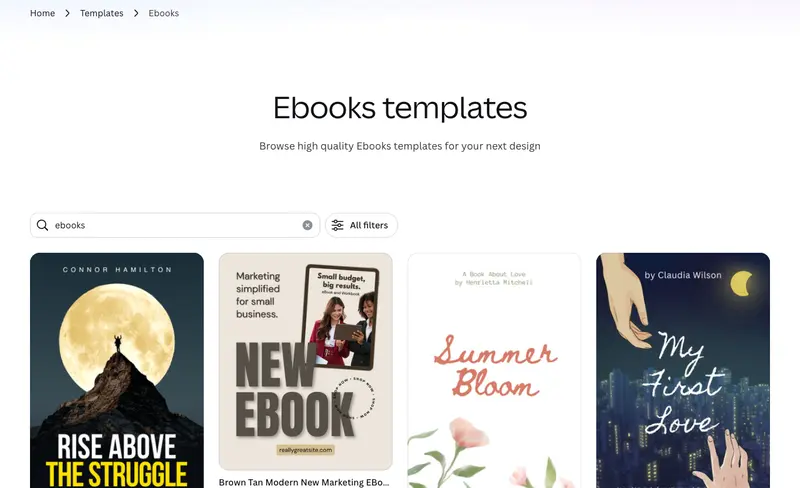
Open Canva and search “ebook,” not “lead magnet.” Canva’s lead-magnet-labeled templates skew toward single-page checklists and worksheets. The ebook, magazine, and lookbook categories are where the multi-page layouts with a built-in cover, table of contents, and closing page live, which is what a short ebook lead magnet actually needs.
Filter for templates that already include:
- A cover page with space for a title and subtitle
- A short table of contents or intro page
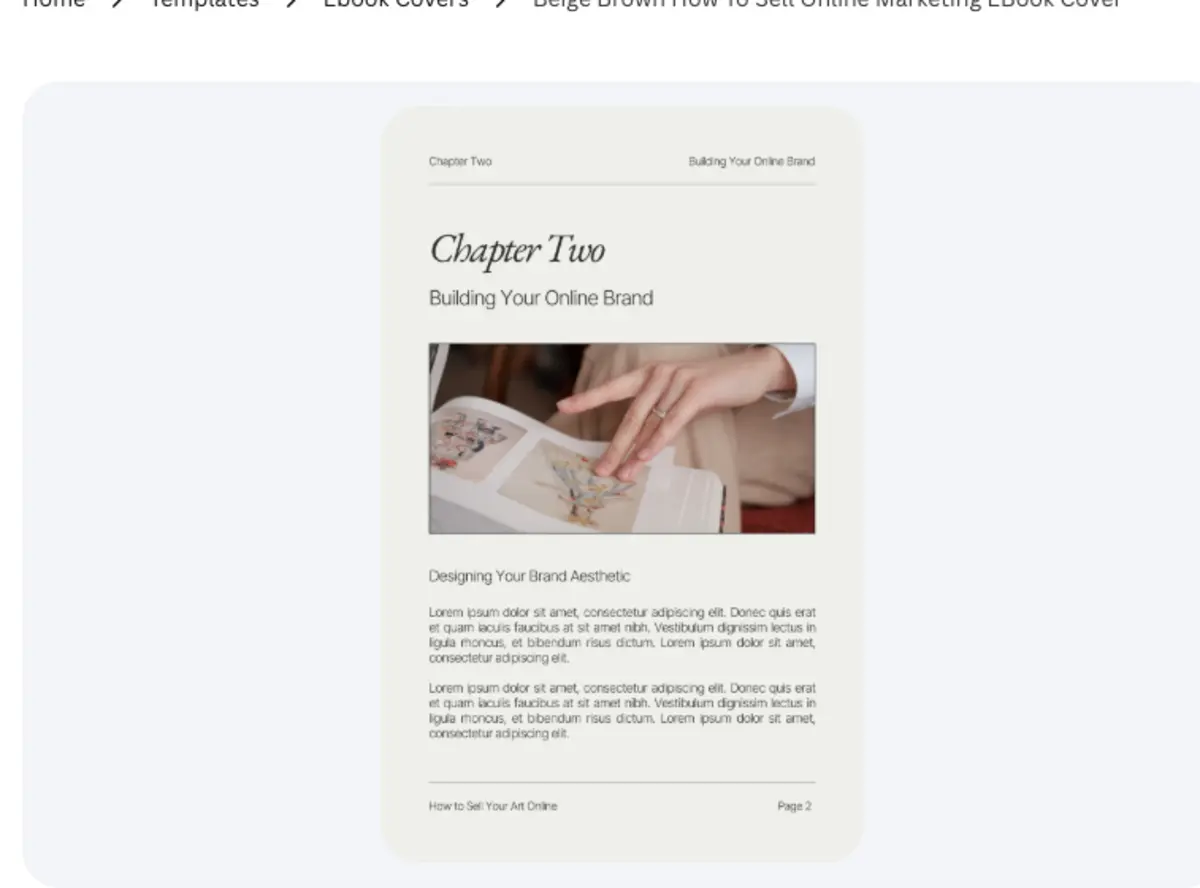
- Three to five content page layouts with room for a heading, body text, and at least one image or callout box
- A closing page, even a blank one you can repurpose as your call-to-action page
Skip anything over 15-20 pages in the preview. Those templates are built for full ebooks, and trimming one down takes longer than starting from a tighter template.
Open the preview before you click “use this template.” Canva shows every page in the template as thumbnails, so you can count pages and check layout variety without committing. A good sign is a mix of layouts (a two-column page, a full-image page, a quote or callout page) rather than the same text block repeated on every page. Layout variety is what makes a short ebook feel designed instead of like a Word document exported to PDF.
Step 3: Compare Free vs. Canva Pro Before You Commit
You do not need Canva Pro to build one ebook lead magnet. The free plan’s ebook template selection is smaller, but it covers the basics above. Canva Pro becomes worth the upgrade once you plan to build more than one format, because the extra template library and Brand Kit slots carry across every future project.
| Feature | Canva Free | Canva Pro |
|---|---|---|
| Templates | 1.6M+ | 3.6M+ |
| Stock photos, graphics, fonts, video, audio | 4.7M+ | 141M+ |
| Brand Kits (saved colors/fonts/logo) | 1 | 5 |
| Cloud storage | 5GB | 100GB |
Source: Canva’s pricing page, checked at time of writing. Confirm current numbers and pricing directly on Canva’s site, since plan details change.
If you are building this one ebook and nothing else this quarter, stay on the free plan. If you expect to build a checklist, a workbook, and this ebook over the next month, the extra Brand Kit slots and larger template library on Pro will save you time across all three.
Step 4: Duplicate the Template and Set Your Page Count First
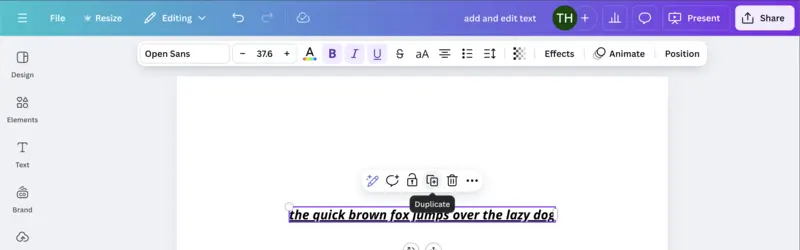
Duplicate the template before you edit anything, so you always have the original layout to fall back to. Then go through every page and either delete it or mark it “keep.” Land on 8-12 pages before you write a single word. This step feels unnecessary, but it is the single biggest difference between creators who ship and creators whose ebook grows to 30 pages by accident. You are setting the container first, then filling it, not the other way around.
Scope creep on an ebook almost always happens one page at a time. A section needs “just one more example,” then a page for “common mistakes,” then a bonus checklist at the end. Each addition feels small in the moment. By page 20, the two-hour project has become a five-hour one, and that is usually where the draft gets closed and never reopened. Deciding the page count before you write removes that decision entirely while you are working.
Step 5: Apply Your Brand Colors and Fonts
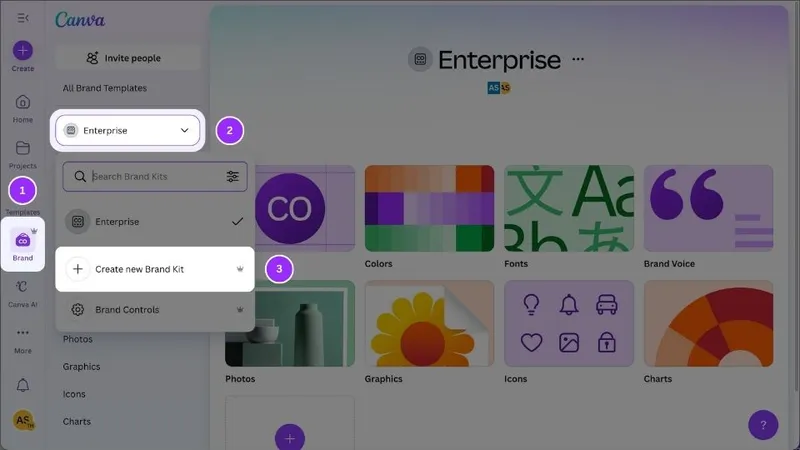
Swap the template’s default colors for your own two to three brand colors. If you are on Canva Pro, the Brand Kit feature stores your palette and font pair and applies them across the whole document in a few clicks. On the free plan, you do this manually per text box and shape, which takes about five to ten minutes for an 8-12 page document. Either way, consistent colors make the finished PDF look designed rather than assembled from a template, which matters more for an ebook than for a one-page checklist.
Not sure an ebook is even the format to build right now? The format decision framework on the Start Here page asks three questions about your audience and topic, then points you to the shortest path to a shipped lead magnet. Two minutes, no signup required.
Step 6: Write Inside the Template, One Page at a Time
Write directly in the Canva text boxes rather than drafting in a separate document first. Working inside the page constraints forces short, scannable sections instead of long paragraphs that get crammed in later. For each content page, aim for one idea, one short block of text, and one visual (a screenshot, icon, or simple chart). If a page needs more than roughly 150 words to make its point, that idea probably deserves its own page instead of fighting for space on one.
Resist the urge to add “just one more section.” The page-count ceiling you set in Step 4 is there to stop scope creep mid-write, which is exactly where most abandoned ebooks fall apart.
Keep paragraphs inside each page to two or three sentences. A page template built for ebooks usually has a text box sized for roughly 60-90 words of body copy at a readable font size. Writing past that forces the font smaller or the text box taller, both of which make a page look cramped once exported. If you consistently need more room, that is a sign the page covers two ideas and should split into two pages instead of one dense one.
Step 7: Build the Cover and a Real Closing Page
Your cover needs a title that states the outcome, not the topic: “The 5-Question Career Pivot Filter” beats “Career Transition Guide.” Keep the subtitle to one line that adds a credibility or specificity marker.
The closing page is the page most templates get wrong, because the blank “thank you” page that ships with most templates does nothing. Replace it with one clear next step: a link to book a call, a prompt to reply to the delivery email, or a pointer to your paid offer if you have one. An ebook lead magnet without a closing-page next step collects downloads and nothing else.
Pick exactly one next step, not a menu of three. “Reply to this email with your biggest question” works. “Book a call, follow me on Instagram, check out my course, and reply with feedback” asks the reader to make a decision at the exact moment their attention is lowest, right after finishing the document, and most will choose none of the four.
Step 8: Export as PDF and Check the File Size
In Canva, use Share > Download > PDF Standard. PDF Print produces a larger file meant for physical printing, which is unnecessary for an email-delivered lead magnet and can push the file size high enough to trigger spam filters or slow downloads on mobile. An 8-12 page PDF Standard export should land under 5-10MB. If it is larger, your images are too high-resolution for screen reading; compress them in Canva before re-exporting.
If text looks blurry or links are not clickable after export, two things usually explain it: the template used a font Canva did not fully embed, or you flattened a page that had a working hyperlink into a static image. Re-check any page with a link (your closing CTA page, almost always) by opening the exported PDF and clicking it before you upload it anywhere.
Once the PDF is ready, load it into your delivery tool. The how-to-make-lead-magnet-in-canva guide covers the full Canva-to-delivery workflow in more depth if you want the complete process for any format, not just the ebook template path.
Frequently Asked Questions
Is there a free Canva ebook template for lead magnets?
Yes. Canva’s free plan includes ebook, magazine, and lookbook templates with a cover, table of contents, and multi-page content layouts built in. The free plan’s ebook-specific selection is smaller than Canva Pro’s, but it covers everything needed for an 8-12 page lead magnet.
How many pages should a Canva ebook lead magnet be?
Keep it to 8-12 pages. Lead magnets built past 15-20 pages take significantly longer to finish and see lower completion rates from readers who downloaded them expecting a quick read, not a full book.
Is Canva Pro worth it for ebook templates?
Only if you plan to build more than one lead magnet or marketing asset. Canva’s own pricing page lists roughly 3.6 million templates on Pro versus 1.6 million on the free plan, plus five saved Brand Kits instead of one. For a single ebook, the free plan’s template selection is enough.
Can I export a Canva ebook template straight to a PDF for email delivery?
Yes. Use Share > Download > PDF Standard, not PDF Print. PDF Standard produces a smaller, screen-optimized file that loads faster in email clients and on mobile, which matters since most lead magnet downloads happen on a phone.
What is the difference between a Canva ebook template and a Canva lead magnet template?
Canva’s “lead magnet” category skews toward single-page checklists and worksheets. Its “ebook,” “magazine,” and “lookbook” categories contain the multi-page layouts with a cover and table of contents that a short ebook-style lead magnet actually needs. Search by format, not by the word “lead magnet.”
Keep Reading
What to Do Next
Choose the path that fits where you are right now.
Pick Your Lead Magnet Format Before You Build.
Get the free three-page Decision Matrix PDF. Match your audience to a lead magnet format, with a format quick reference to help you start building.
Get the Decision MatrixRelated Articles
Ebook Lead Magnet Teardown: What Works and What Doesn't
An ebook lead magnet can build trust, but it stalls many creators. See what two real ebook pages get right, where the format breaks, and when to use it.
Checklist vs Ebook Lead Magnet: Which One Converts?
Checklist or ebook lead magnet? Honest comparison by effort, conversion, and fit, with a clear recommendation for most creators.
Lead Magnet Design Tips: Make Yours Look Professional (No Designer Needed)
Practical design tips for creating a professional-looking lead magnet using Canva's free plan. Covers fonts, colors, spacing, cover design, and the most common mistakes to avoid.